How to Fix PS4 Error Code CE-30005-8: Complete Guide with Proven Solutions
If you’ve encountered the dreaded PS4 error code CE-30005-8, you’re not alone. This frustrating issue has disrupted countless gaming sessions, leaving players unable to launch games or access data from their discs or external storage. In this article, we’ll break down everything you need to know about CE-30005-8—from what causes it to how you can fix it, based on real user experiences and expert recommendations.
What is PS4 Error Code CE-30005-8?
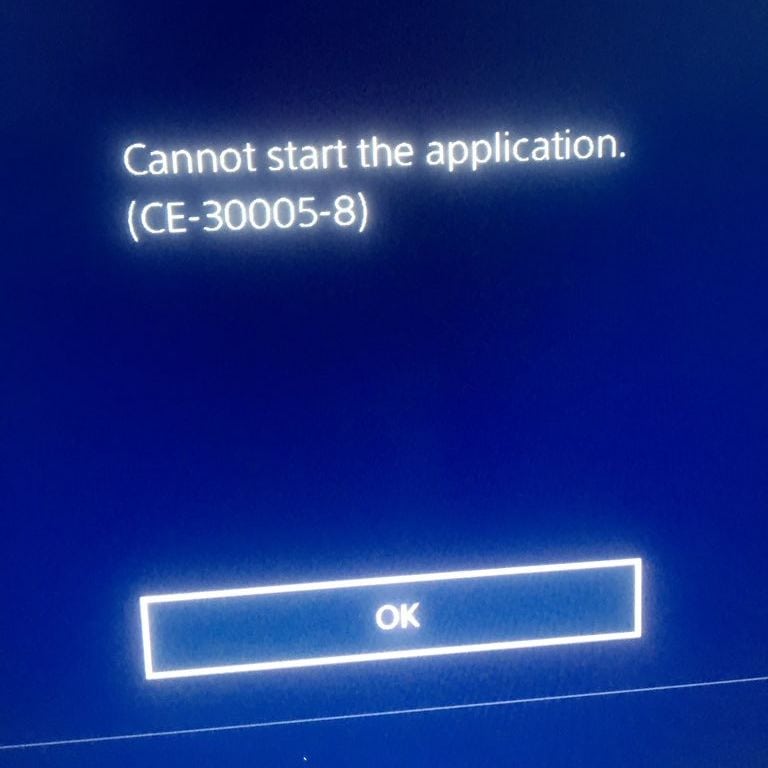
PS4 Error Code CE-30005-8 typically appears with the following message:
“Cannot start the application. (CE-30005-8)”
This error usually occurs when the system fails to access the hard drive or disc properly. It affects both physical discs and external USB storage, causing games to crash or fail to start.
How This Error Impacts Gamers
Gamers facing CE-30005-8 often report:
-
Inability to launch physical games from Blu-ray discs
-
Corrupted data preventing game saves or updates
-
USB external drive failure or unrecognized storage
-
Repeated crashes or game freezes during launch
This not only disrupts gameplay but can also cause data loss, especially if game files become corrupted. For users who store large games on external drives, this can be devastating.
What Causes PS4 Error CE-30005-8?
Based on user reports and expert diagnostics, here are the most common causes:
1. Damaged Game Disc
Scratched, dirty, or cracked discs can prevent the console from reading game data properly.
2. Corrupted Game Files
Improper shutdowns, power outages, or failed installs can damage essential game files.
3. Faulty Hard Drive or External Storage
Bad sectors or physical issues with the HDD or SSD—whether internal or external—can trigger this error.
4. Loose or Faulty Connections
USB cables or drive connections may be unstable, causing read/write failures.
5. Outdated System Software
Older firmware might not properly support new drives or patch known bugs.
Proven Solutions to Fix CE-30005-8
Here’s a complete list of tested solutions, recommended by PlayStation support, tech experts, and real users.
✅ 1. Clean and Inspect the Game Disc
If the error appears with a specific physical game:
-
Gently clean the disc with a soft microfiber cloth
-
Check for deep scratches or visible damage
-
Try launching a different disc to rule out drive failure
Tip: If other discs work fine, the problem is likely the game disc itself.
✅ 2. Delete Corrupted Game Files
Corrupted game files can cause CE-30005-8. Here’s how to remove them:
-
Go to Settings > Storage > System Storage > Applications
-
Select the game causing issues and press Options > Delete
-
Reinstall the game from disc or digital library
Note: You may need to re-download game updates after reinstalling.
✅ 3. Rebuild PS4 Database (Safe Mode)
Rebuilding the database can fix corrupted files and improve system performance:
-
Turn off the PS4 completely (not Rest Mode)
-
Hold the power button until you hear two beeps (Safe Mode)
-
Connect your controller via USB and press the PS button
-
Select Rebuild Database
This process can take 15–30 minutes but won’t delete your data.
✅ 4. Check External USB Drive
If you’re using an external drive, try the following:
-
Disconnect and reconnect the USB storage
-
Use a different USB port
-
Make sure the drive is formatted in exFAT
-
Try the drive on another PS4 or PC to test functionality
If the drive is corrupted, you may need to backup your data and reformat it via PS4 or PC.
✅ 5. Replace the Hard Drive (If Necessary)
If the error keeps occurring with different games and storage devices, your internal hard drive may be failing.
-
Backup your data using PS Plus or USB storage
-
Replace the hard drive with a compatible 2.5-inch SATA HDD or SSD
-
Reinstall the system software from a USB drive (downloadable from PlayStation’s website)
This is a more advanced step but has resolved the issue for many users.
✅ 6. Update System Software
An outdated system can trigger compatibility issues.
-
Go to Settings > System Software Update
-
Install any available updates
-
Restart your console and test the game again
✅ 7. Contact PlayStation Support
If none of the above work, it might be a deeper hardware issue. Visit PlayStation Support and provide your error code and device info.
Final Thoughts
PS4 Error CE-30005-8 can feel like a major setback—but with the right approach, it’s often fixable without needing to replace your console. Whether it’s a simple disc clean, a database rebuild, or a hard drive replacement, there are multiple solutions worth trying before panicking.