How to Reinstall System Software on PS4 (2025 Guide): Fix Crashes, Errors & Performance Issues
If your PlayStation 4 is acting up—crashing, freezing, refusing to boot, or showing persistent error codes—one of the most effective solutions is to reinstall the system software. It’s a serious step, but it’s often the last line of defense when simpler fixes just don’t work.
In this 2025 guide, we’ll walk you through everything you need to know: when and why to reinstall PS4 system software, how to do it safely, and what real gamers and repair pros say about the process. We’ll also cover common mistakes to avoid and how to prevent issues after the reinstall.
Why You Might Need to Reinstall PS4 System Software
Reinstalling the PS4’s operating system (OS) wipes the console completely—including games, apps, and user data—and installs a fresh version of the firmware. It’s different from a standard update or soft reset.
Common reasons include:
- The console won’t boot past the PlayStation logo
- Stuck in Safe Mode with no other options working
- Error codes like CE-34878-0 or SU-30746-0 keep appearing
- Glitches after a failed update
- Software corruption due to power outages or hard drive failures
- Replacing the internal hard drive
Gamers on Reddit and PS4 forums confirm that this step fixed severe software bugs that even database rebuilds couldn’t touch.
What Reinstalling Will and Won’t Do
Will:
- Wipe your system clean (including user profiles and saved games not backed up)
- Fix system-level corruption and software bugs
- Install a fresh, official version of PS4 firmware
Won’t:
- Fix hardware problems (like a broken hard drive or overheating issues)
- Remove your PSN account from Sony’s servers
So before proceeding, make sure your issue is software-related. If your PS4 is physically damaged or has hardware faults, reinstalling won’t help.
Step-by-Step: How to Reinstall PS4 System Software
Let’s go through the process in detail. You’ll need a PC or Mac, a USB flash drive, and your PS4 console.
Step 1: Back Up Your Data (If Possible)
If your system is still somewhat usable, back up:
- Saved games
- Screenshots and videos
- User profiles (especially if not synced to PSN)
Backup Options:
- USB drive: Settings > Application Saved Data Management > Saved Data in System Storage > Copy to USB
- PS Plus Cloud Storage: Auto-upload your saves (must be an active PS Plus subscriber)
Step 2: Prepare a USB Drive with System Software
You’ll need at least 1GB of space on a USB flash drive.
Instructions:
- Format the USB to FAT32 (use exFAT only if FAT32 isn’t supported)
- Create a folder named PS4, then inside it, another folder named UPDATE
- Go to the official PlayStation website and download the reinstallation file (not the update file!)
- Save the file as
PS4UPDATE.PUPinside theUPDATEfolder
Important: Do NOT rename the folders or use the wrong file version—it will fail during installation.
Step 3: Boot PS4 into Safe Mode
- Turn off the PS4 completely (not Rest Mode)
- Hold the power button until you hear two beeps (about 7 seconds)
- Connect a DualShock 4 controller using a USB cable
- Select Option 7: Initialize PS4 (Reinstall System Software)
Your PS4 will now prompt you to insert the USB drive.
Step 4: Install the Firmware
- Insert the USB drive containing the reinstallation file
- Follow on-screen prompts
- Wait while the system erases everything and installs a fresh OS (takes about 10–20 minutes)
Once complete, the PS4 will reboot and prompt you to set up the console as if it were brand new.
After the Install: Set Up Your Console
After the reinstall:
- Re-sign into your PSN account
- Redownload games from your Library
- Restore saved data from USB or Cloud
- Reapply settings (Wi-Fi, parental controls, themes, etc.)
Many users report better performance, faster load times, and fewer crashes after a clean reinstall.
Common Mistakes to Avoid
1. Using the Wrong File
There are two system software files on Sony’s website: one for updates and one for reinstalls. You need the larger one (around 1GB) for reinstalling.
2. Incorrect Folder Names
The USB must be formatted correctly with exact folder names: PS4 > UPDATE
3. Unplugging During Install
Never remove the USB or power down your console during the reinstall process. It can brick your system.
4. Corrupt USB Drives
Use a clean, freshly formatted USB. Some cheap or older drives may cause install errors.
What Gamers Say: Real-World Feedback
Thousands of gamers across Reddit (like r/PS4, r/PlayStation) report that reinstalling system software helped them:
- Fix persistent CE-34878-0 crashes
- Recover from Safe Mode boot loops
- Resolve lag and stuttering in games like Warzone, FIFA, and Elden Ring
- Prepare their PS4 for resale or after upgrading the HDD
“Tried every fix I could find for 3 days. Finally reinstalled the system software—problem gone. Console runs smoother than ever.”
“Swapped my HDD for an SSD and needed to reinstall the OS. The process was easy if you follow the folder names exactly.”
When to Try a System Software Reinstall
Do it if:
- Your PS4 can’t boot properly
- Safe Mode options 3 or 5 (Update System Software or Rebuild Database) don’t help
- You’ve installed a new internal hard drive
- You want a completely clean start after years of clutter and bugs
Avoid it if:
- You haven’t backed up your saves and still want them
- The issue is hardware-related (e.g. overheating, damaged ports, broken hard drive)
Bonus: Should You Upgrade to SSD First?
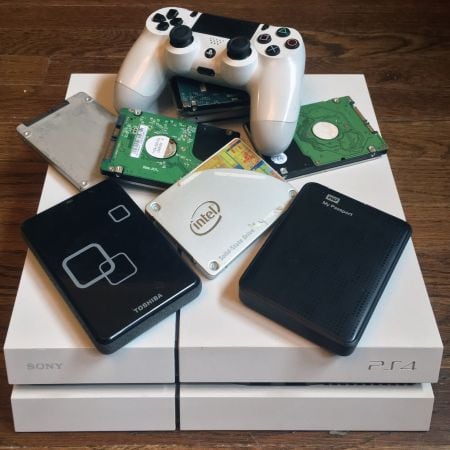
If you’re reinstalling system software anyway, many users recommend upgrading to a solid-state drive (SSD) before doing so. SSDs load games faster, reduce in-game stuttering, and improve boot times.
Steps:
- Replace HDD with compatible 2.5″ SATA SSD
- Follow the same reinstall process with your prepared USB
- Enjoy a faster, smoother PS4 experience
Final Thoughts
Reinstalling system software on your PS4 isn’t something you need to do often—but when your console is seriously bugged out, it can be a game-changing fix. The 2025 update process is smoother than ever, and countless users report noticeable improvements afterward.
Whether you’re fixing boot errors, clearing long-term software clutter, or preparing your PS4 for resale, reinstalling the OS gives you a clean slate. Just remember to back up your data, follow the USB setup steps exactly, and be patient during the process.